

How to give an AI agent read-only access to your files
To give an AI agent read-only access to your files, connect it to Pocket Archive and untick Allow changes on the approval page. The agent can then search, read and download your documents, but it never sees the tools that upload, edit or delete. You can check and revoke it in Connected apps.
Before you start
A Pocket Archive account. The Free plan works.
An AI app that supports remote MCP servers with OAuth sign-in. See the setup steps for your app on the AI agents page.
A few minutes to review what the agent asks for before you approve it.
Steps
Add Pocket Archive to your AI app using the server URL:
https://api.pocketarchive.io/mcpStart the connection. Your app opens the Pocket Archive approval page in your browser.
Sign in on pocketarchive.io if you're asked to. The agent never sees your password.
Check the app name at the top of the page and the Return to address, such as claude.ai for Claude. If you didn't start this connection, select Deny.
Read the permissions. Read your archive is always included: view and search documents, download original files, and read Attention items and Collections.
Untick Allow changes. It only appears if the app asked for permission to make changes, and then it starts ticked.
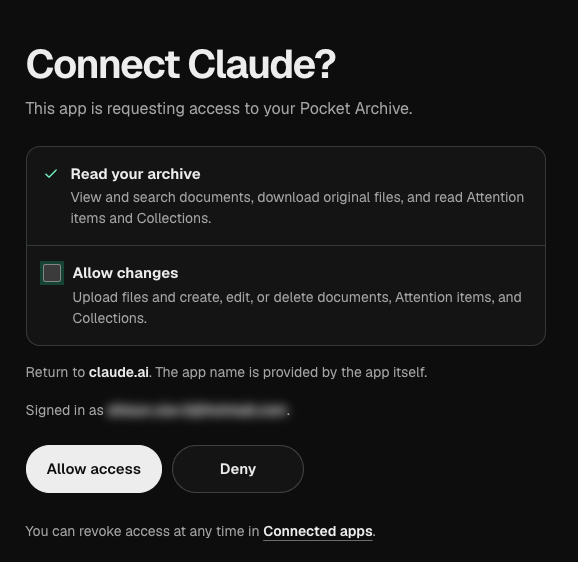
Select Allow access.
In Pocket Archive, open Settings, find Connected apps under Privacy and security, and select Manage connections. Check that the app shows Read only, with the date its access expires.
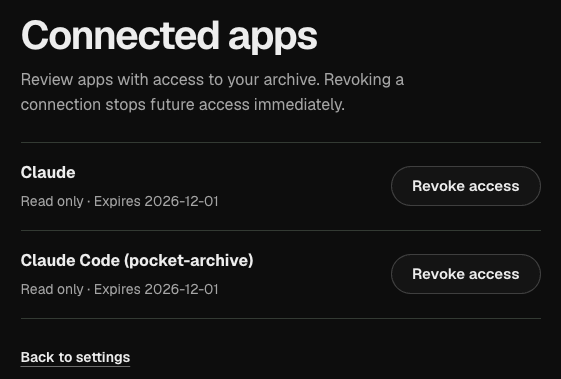
When you're done, select Revoke access next to the app. It loses access right away.
Check it worked
Ask your agent:
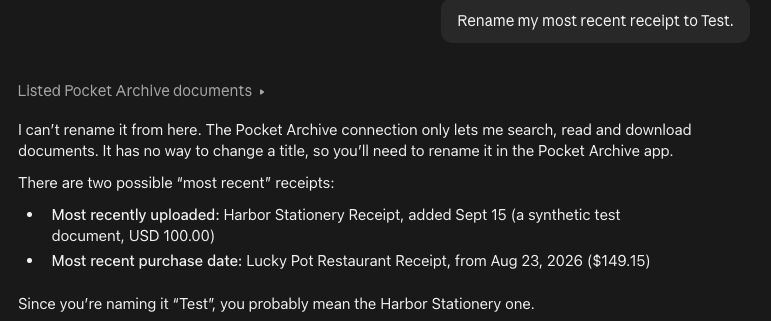
Rename my most recent receipt to Test.
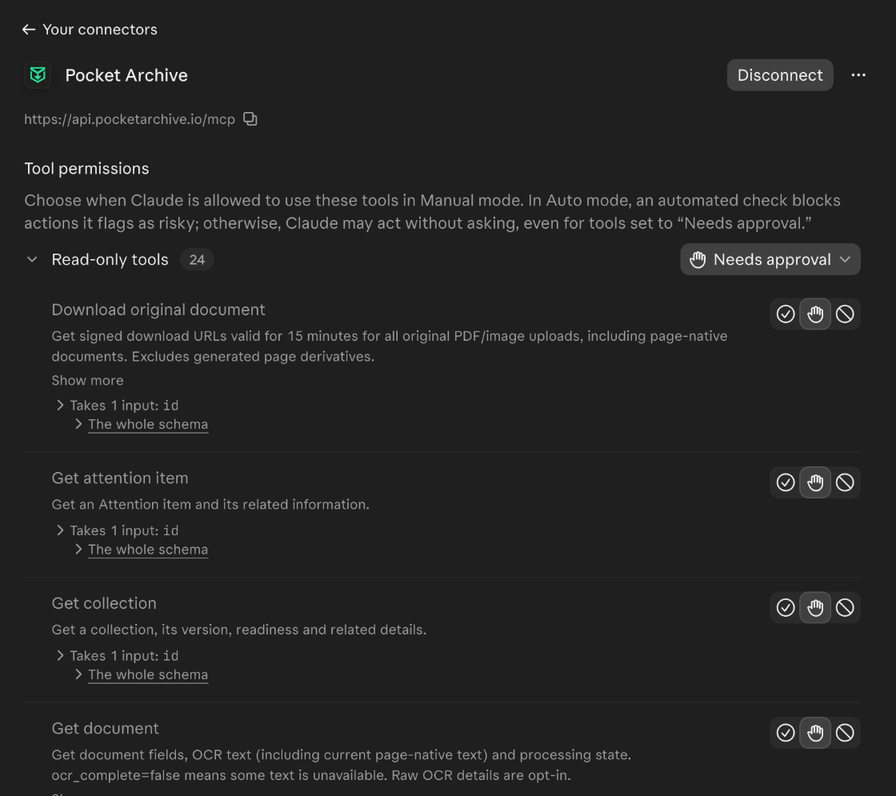
The agent can find the receipt, but it tells you it can't rename it. A read-only connection sees 24 of the 54 tools, so update_document, delete_document, create_upload_session and create_document are missing. In Claude, the connector page lists them under Read-only tools.
What you can ask next
- Search my archive for my car insurance policy and tell me when it renews.
- Read my lease page by page and quote the clause about subletting.
- List my open Action Inbox items and their due dates.
- Find the receipt for my laptop and download the original.
Limits and troubleshooting
Downloads leave the archive: read-only still includes downloading original files. Revoking access stops future access but can't recall files already downloaded.
The provider reads the text: text your agent reads is processed by that agent's provider under their terms. Read-only limits changes, not reading.
Need changes later: you can't upgrade a connection in place. Revoke it in Connected apps, then connect again and tick Allow changes.
Access ends on its own: access renews every 15 minutes, and each connection ends after 30 days unless you approve it again.
Not available to agents: Archive AI chat, spending insights, share links, billing and account settings.
Questions
What can a read-only agent do?
View and search documents, read them page by page, download original files, check upload progress, and read Attention items, Collections and receipt line items. That's 24 of the 54 tools.
Can a read-only agent delete documents?
No. Read-only connections don't see the tools that upload, edit or delete.
How do I check what access an app has?
Open Connected apps in Pocket Archive settings. Each app shows Read only or Read and make changes, with the date its access expires.
Does revoking access delete anything?
No. Revoking stops future access. Your documents stay in your archive, and files the app already downloaded can't be recalled.