

Claude custom connector: connect your documents step by step
To add a custom connector in Claude, go to Customize → Connectors, select Add custom connector, and paste the server URL https://api.pocketarchive.io/mcp. Sign in to Pocket Archive and choose read-only or allow changes. Claude can then search your documents, read them page by page, and point you back to the original file.
Before you start
A Pocket Archive account. The Free plan works, and agent access is included on every plan.
Claude on the web or the desktop app. Custom connectors work on every Claude plan, but the Free plan allows only one. On Team and Enterprise plans, an Owner adds the connector for the organization first.
At least one document in your archive that has finished processing, so there is something to find.
A decision about access: read-only is enough to search, read and download. Allow changes only if you want Claude to upload, edit or delete.
Steps
Open Claude on the web or desktop, then go to Customize → Connectors.
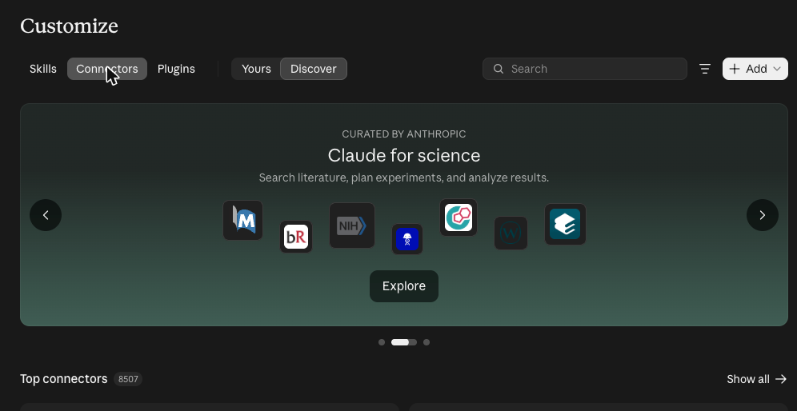
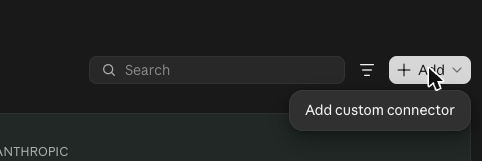
Select + Add at the top right, then Add custom connector.
Name it Pocket Archive, paste the server URL, then select Continue:
https://api.pocketarchive.io/mcp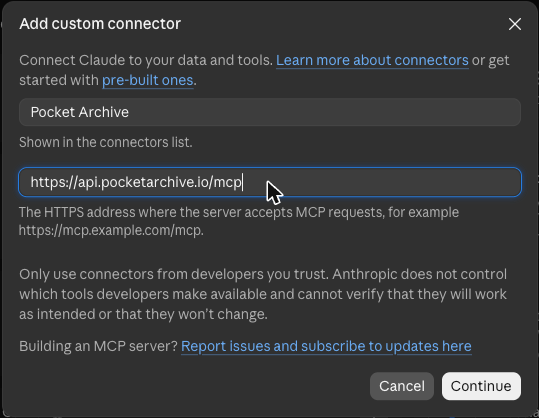
Claude checks the server and fills in the sign-in settings for you: Sign in now under Authentication and Register automatically under OAuth client, both marked Detected. Leave them as they are, with no client ID, secret or request headers.
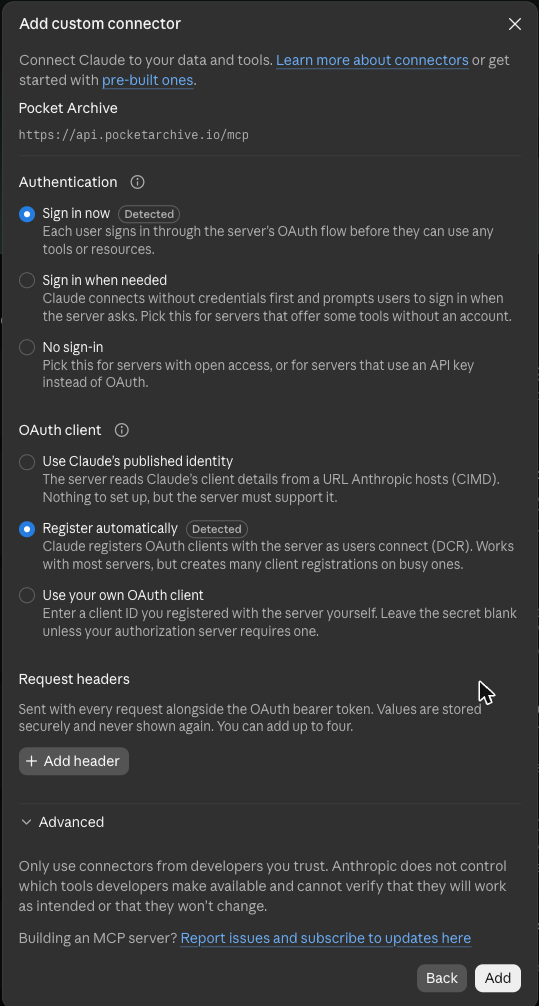
Select Add. On the connector page that opens, select Connect. Claude takes you to Pocket Archive.

Sign in if you're asked to. If you're already signed in on the web, you go straight to the approval page.
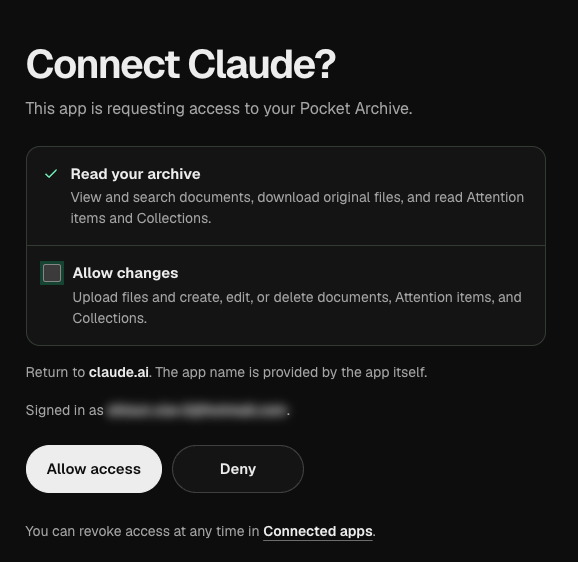
Check the app name at the top of the page (Connect Claude?) and the Return to address below the permissions (claude.ai). The app name is provided by the app itself, so make sure you started this connection.
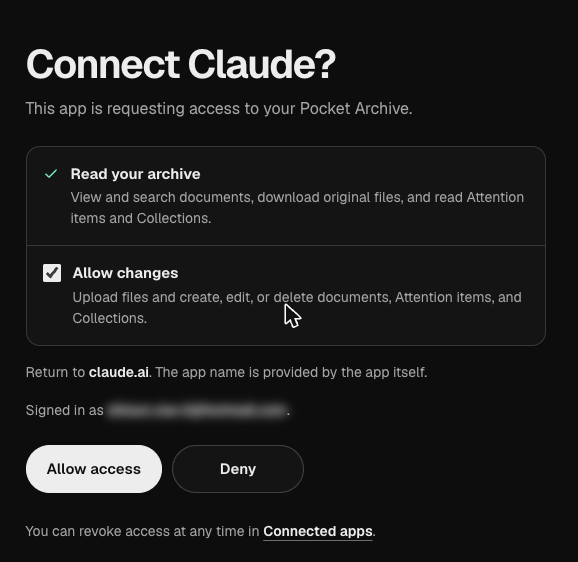
Claude asks for permission to make changes, so Allow changes starts ticked. Untick it for read-only access, or leave it ticked to let Claude upload, edit and delete. Then select Allow access.
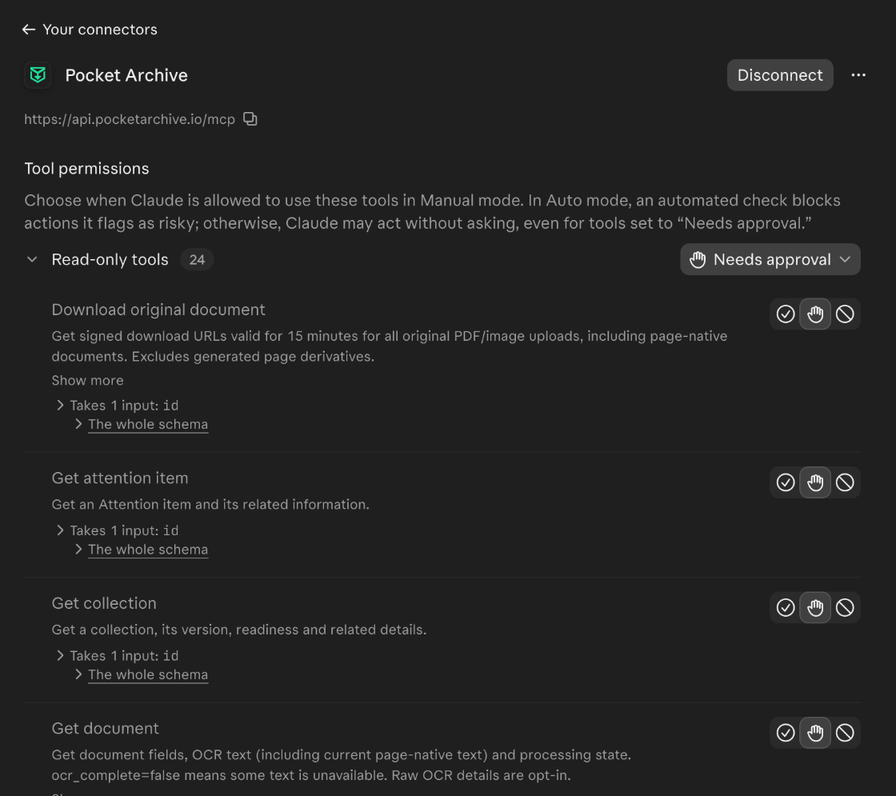
Claude brings you back to the connector page and lists the tools it can use. A read-only connection shows Read-only tools (24), each set to Needs approval.
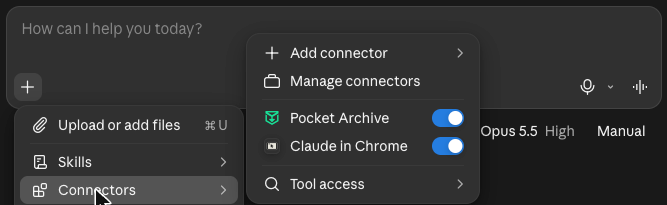
Start a new chat. Select the + button, choose Connectors, and make sure Pocket Archive is turned on. It's on by default.
When Claude wants to use a Pocket Archive tool, it asks you first. Select Allow once, or Always allow to stop asking for that tool.

Check it worked
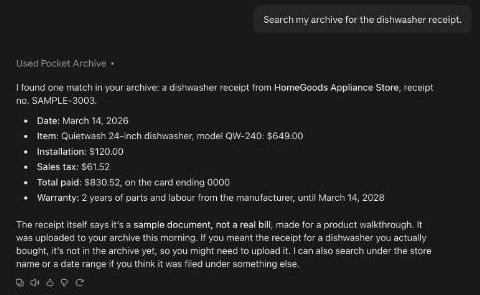
Ask your agent:
Search my archive for the dishwasher receipt.
Claude calls search_documents, then reads the match with get_document, and names the document with the date, items and total it read. If nothing matches, it searches again with other words, then says the search came back empty rather than guess.
What you can ask next
- Find last year's property tax bill and download the original.
- List the receipts I added this month and their totals.
- What does my home insurance policy say about water damage? Show me the original page.
- Which items in my Action Inbox are due in the next two weeks?
- Show me the documents in my tax collection that are still suggestions.
Limits and troubleshooting
Not available to agents: Archive AI chat, spending insights, share links, billing and account settings. Claude answers from the documents it reads itself.
Upload fails: uploading needs an app that can send files from your device. If Claude can't, upload on the web. Claude can work with the document once it's processed.
Results stop early: the agent read only the first page of results. Ask it to keep going, or add the Pocket Archive skill, which teaches agents to follow every page.
Claude keeps asking first: each tool starts as Needs approval. Select Always allow in the chat, or change the tool's setting in Customize → Connectors → Pocket Archive.
Access stopped working: access renews every 15 minutes, and each connection ends after 30 days unless you approve it again. It also stops if you revoke it. Reconnect from Customize → Connectors in Claude.
Who reads the text: text Claude reads is processed by Anthropic under their terms. Use read-only access for sensitive records.
Questions
Does connecting Claude cost extra?
No. Agent access is included on every Pocket Archive plan, including Free. Uploads still count toward your plan's text recognition and storage limits.
Can Claude change or delete my documents?
Only if you tick Allow changes when you approve the connection. Deleted documents go to trash and can be restored.
Does Claude get my Pocket Archive password?
No. You sign in on pocketarchive.io. Claude gets its own access, never your password or web session.
How do I disconnect Claude?
Open Connected apps in Pocket Archive settings and select Revoke access. Revoking stops future access but can't recall files already downloaded.